
Getting started with voice reporting: your first signed report
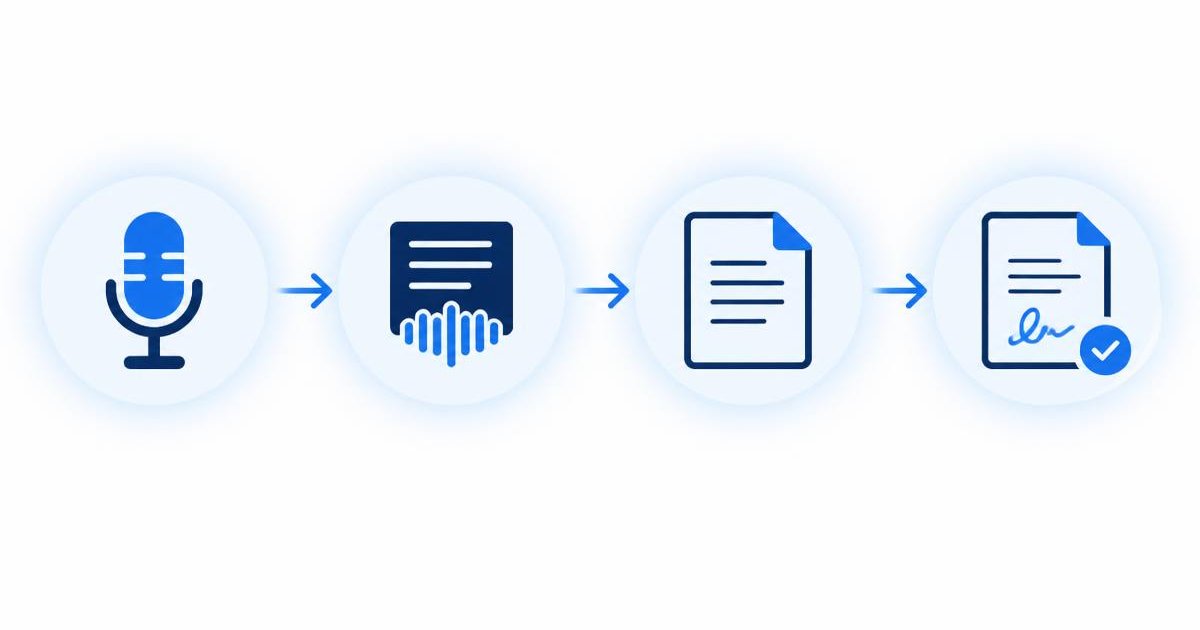
Starting with voice reporting can feel like a big change, but the first report is usually the hardest. Once you have been through the steps once, the routine becomes familiar quickly.
This guide walks you through your first signed report in Medicate, from setting up your account to downloading the finished file. Medicate guides you through four steps: Dictate, Structure, Review and Sign. Each section below explains what happens at that step and what to look out for. Everything you see in the demonstration is fictional.
What do you need before you start?
You need a Medicate account, a supported browser and a microphone. Dictation works in Chrome, Edge and Safari. Firefox does not support browser speech recognition, but you can always type instead.
A quiet room and a headset or desk microphone will give you a cleaner transcript, although a laptop microphone is fine for trying things out.
When you sign up, your dashboard already contains a few fictional demo reports and referrers, so you can explore before creating anything of your own.
- A Medicate account.
- Chrome, Edge or Safari for dictation.
- A microphone, ideally a headset.
- A few minutes in a quiet space.
How do you set up your profile, signature and letterhead?
Set up your profile, signature and letterhead in Settings before your first report, so they appear correctly on the signed file.
Add your name and practice details, then draw your signature on the signature pad. Your letterhead details appear at the top of the PDF and Word exports.
You can change these at any time. Changes apply to reports you sign afterwards.
- Enter your name and practice details.
- Draw and save your signature.
- Fill in your letterhead details.
Why add referrers to your directory first?
Adding referrers first means you can pick the referring doctor from a list when you sign, instead of typing their details each time.
Open Referrers, choose Add referrer and enter the name, practice and contact details. You can edit or remove referrers later, and Medicate always asks you to confirm before deleting anything.
The sign step needs a referrer, so if your directory is empty, Medicate will tell you and point you to the Referrers page.
- Open Referrers from the menu.
- Add the doctors you report for most often.
- Edit details whenever they change.
What happens in the Dictate step?
In the Dictate step you speak your report and watch the transcript appear live on screen. You can pause and resume, and you can type or edit the text directly at any point.
Give the report a title, then press the microphone button and dictate as you normally would. Saying section names such as indication, findings and conclusion helps the next step.
When you have finished, press Next. If the transcript is empty, Medicate will tell you to dictate or type something before continuing.
- Add a report title.
- Press the microphone and speak naturally.
- Say section names aloud.
- Edit the text directly if needed, then press Next.
What does the Structure step do?
The Structure step organises your transcript into Indication, Findings and Conclusion. It reformats only: it does not add findings, measurements or laterality that you did not say.
Press the button to structure the report and wait a moment while the draft is prepared. If you go back and change your dictation, you can structure it again, but this replaces any edits you made to the draft, and Medicate warns you before you do.
Once the draft is ready, you move on to Review.
- Organises your words into three sections.
- Never adds content you did not dictate.
- Can be repeated if you change the dictation.
How do you review and correct the draft?
You review the draft by reading the structured report next to your original transcript and correcting anything that is wrong.
You can edit any section by typing, or use simple commands such as replace mildly with moderately in findings. Medicate highlights laterality words and numbers in the draft that do not appear in your transcript, so you can check them carefully.
Read the whole report once before moving on. Pay particular attention to left and right, measurements and negations. Going Back saves your edits, so nothing is lost.
- Compare the draft with your transcript.
- Correct by typing or by command.
- Check any highlighted words.
- Read the whole report before pressing Next.
How do you sign and download the report?
In the Sign step you choose the referring doctor, confirm your signature and sign the report. Medicate then marks it as signed and offers PDF and Word downloads with your letterhead.
Medicate never sends emails. You download the file and share it through your usual channel, which keeps you in control of where it goes.
Signed reports appear separately from drafts on your dashboard. If you need to change one, you can reopen it, following your own department's process for amending reports.
- Choose the referrer.
- Confirm your signature and sign.
- Download as PDF or Word.
- Share the file through your usual channel.
What are common first-report mistakes to avoid?
Common first-report mistakes are rushing the review, dictating without a plan and skipping the setup in Settings. Each one is easy to avoid once you know about it.
It is tempting to trust a tidy-looking draft and sign it straight away. A neat layout does not mean every word is right, so read each section against your transcript, especially the parts Medicate highlights.
Dictating without a plan tends to produce false starts and repeated phrases that then need deleting. Take a few seconds to decide what you will say before pressing the microphone button.
Finally, if your signature or letterhead is missing, the exported file will look incomplete. Set these up once in Settings and they will appear on every report you sign afterwards.
- Do not sign a draft without reading it in full.
- Plan before you press the microphone.
- Complete Settings before your first signature.
- Add at least one referrer before the Sign step.
- Use Back freely: your work is kept.
What should you do after your first report?
After your first report, try a few more with different study types to build a routine. Notice which words need correcting most often and adjust your dictation habits.
Many people find that a consistent order for each study type and a short review checklist make the biggest difference. Our other guides cover both in more detail.
Most of all, keep reviewing carefully. Voice reporting changes how the words reach the page, not the responsibility for what they say.
Medicate structures dictated text; the physician reviews and signs every report. It is not a diagnostic tool.
- Practise with several study types.
- Note words that often need correcting.
- Build a consistent dictation order.
- Keep a short review checklist.
Frequently asked questions
Do I need to install anything?
No. Medicate runs in your browser. You can also add it to your home screen from the published site if you like.
Can I try Medicate without dictating?
Yes. You can type your report in the Dictate step and continue through the same steps.
Does Medicate send the report to the referrer?
No. Medicate never sends emails. You download the signed PDF or Word file and share it yourself.
Are the demo reports real?
No. All demo reports, referrers and other data in Medicate are fictional.
Medicate is a demonstration product. All data on this site is fictional.